

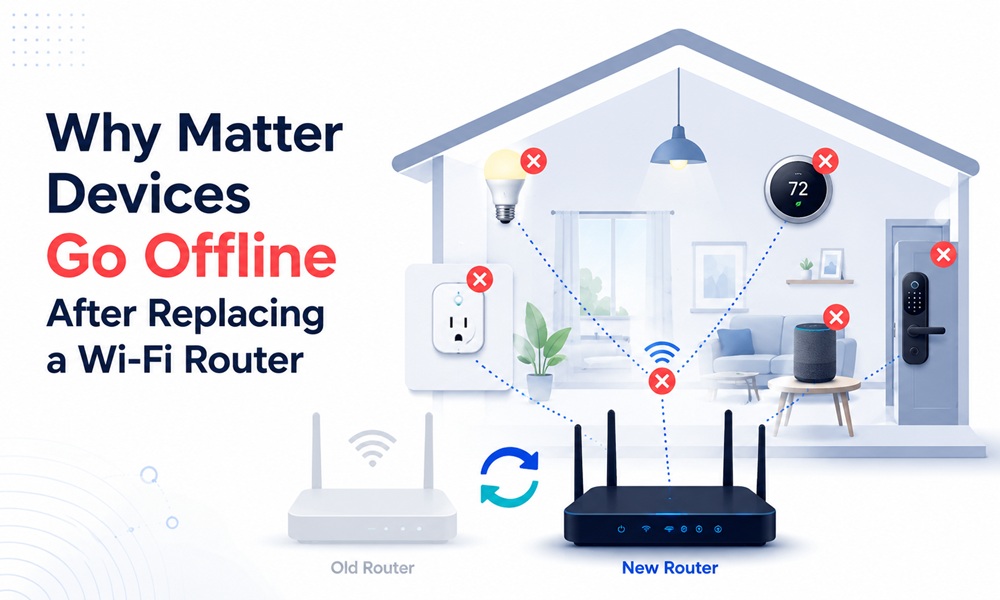
You upgraded the router, and now half your smart home shows “No Response” or “offline.” Before you factory-reset 30 devices in a panic, take a breath. Most of this is recoverable in minutes once you understand one core idea that almost every troubleshooting page buries.
The idea that explains everything: the fabric is not in the router
When you add a Matter device, it joins a fabric — a cryptographic relationship between the device and your controller. That fabric is stored in your controller (the Apple Home hub, Google Home, Alexa, or Home Assistant), not in your router. Swapping the router does not delete the fabric and does not un-pair your devices.
So why do devices go dark? Because the router is the plumbing that lets the controller and the devices reach each other. Change the plumbing and the connections drop until each device finds its way back. Whether that is automatic depends entirely on how each device connects.
Step 1 — Split your devices into two camps
This is the whole game. Matter devices connect one of two ways, and they behave completely differently during a router swap.
| Matter over Wi-Fi | Matter over Thread | |
| What it is | Plugs, many bulbs, cameras, larger appliances that join Wi-Fi directly. | Low-power sensors, locks, contact/motion devices, some bulbs. |
| What it stores | Your Wi-Fi SSID and password. | A Thread network dataset (network key, channel, PAN ID) — NOT your Wi-Fi password. |
| Does it care about the router? | Yes. It must rejoin the same Wi-Fi. | No — unless your router itself is the Thread border router. |
| After a same-SSID swap | Reconnects on its own once the network is stable. | Unaffected; just needs the border router back on the network. |
| THE DETAIL THAT DECIDES HOW PAINFUL THIS IS
Ask one question: is your Thread border router a separate device or built into the router you just removed? A standalone border router — a HomePod, Apple TV, Echo (4th gen), or Nest Hub — keeps your Thread network alive through a router swap untouched. But if your old router was the border router (some eero and Nest Wifi Pro units are), removing it takes the Thread network with it, and Thread devices will need re-commissioning. Check this before you unplug anything. |
Step 2 — Do this before you swap the router (5-minute checklist)
If you have not switched yet, set up the new router to impersonate the old one. This prevents 90% of the problems:
- Clone the SSID — exact same network name, character for character.
- Clone the password and the security type (WPA2/WPA3). A WPA3-only change alone can knock older devices offline.
- Keep IPv6 enabled. Matter relies on IPv6 and local mDNS discovery. Many new routers ship with IPv6 off or with aggressive filtering — a silent Matter-killer even when the Wi-Fi name matches.
- Turn off AP isolation / client isolation so the controller can see every device.
- Ease off band steering / “Smart Connect” if you can keep a stable 2.4 GHz name — most smart-home gear is 2.4 GHz only.
Step 3 — Bring everything back online, in order
Already swapped and seeing offline devices? Work these steps top to bottom. The first three fix most cases.
- Let the router fully boot first. Wait until all indicator lights are stable and the internet is confirmed. Devices that try to reconnect while DHCP is not ready will fail and may not retry for several minutes.
- Power-cycle your hubs and border routers. Restart the Apple TV / HomePod / Echo / Nest Hub so they re-establish their connection and, for Thread, start rebuilding the mesh.
- Wait 5 minutes for Thread, untouched. A Thread mesh rebuilds itself after the border router restarts. If only your Thread devices are offline while Wi-Fi devices are fine, this is almost always just rebuild time — not a fault.
- Power-cycle stubborn Wi-Fi devices. Unplug for 10 seconds, plug back in. They re-request an address and rejoin.
- Confirm the SSID/password really didn’t change. Some router firmware resets these during setup. If they changed, see the next section — Wi-Fi Matter devices cannot update credentials over the air.
Step 4 — Make it stable for good
These settings stop the slow drip of “random” offline events after future reboots:
- Reserve IP addresses (DHCP reservations) for hubs, border routers, and Matter devices by MAC address. The most reliable long-term fix — a device keeps the same IP, so your controller never loses track of it.
- Raise the DHCP lease time to 24–48 hours so devices renegotiate addresses far less often.
- Place border routers centrally — not hidden behind a TV or inside a metal rack — and add a few mains-powered Thread devices so the mesh has strong, redundant paths.
The one situation that does require re-commissioning
Here is the hard limit of the Matter protocol: there is no over-the-air way to change a device’s Wi-Fi credentials. So if your new network name or password is different from the old one, each affected Wi-Fi Matter device must be factory reset and re-commissioned with the new details. The same applies to Thread devices only if the border router they relied on was inside the router you removed.
The good news: re-commissioning into your existing controller is quick, and because the fabric still lives in your app, your automations, rooms, and names are usually preserved — you are reconnecting devices, not rebuilding a smart home from scratch.
| AVOID THIS TRAP
Do not start deleting devices from your Home app the moment they show offline. Deleting removes them from the fabric and guarantees a full re-pair. Try the reconnection steps first; deletion is the last resort, not the first. |
Frequently asked questions
Do I need to rebuild my whole smart home after changing routers?
No. Your Matter fabric lives in your controller app, not the router. Keep the same SSID and password on the new router and most devices reconnect on their own; at worst you re-commission a few Wi-Fi devices.
Why are only my Thread devices offline after the router change?
Thread devices run on a mesh anchored by a border router (HomePod, Apple TV, Echo, Nest Hub). After that hub restarts, the mesh takes a few minutes to rebuild. Wait about 5 minutes without touching anything and they usually return on their own.
Will keeping the same network name and password fix it?
For Wi-Fi Matter devices, almost always — they hold the old credentials, so an identical SSID and password lets them rejoin. Also keep IPv6 enabled and avoid switching to WPA3-only, both of which can break Matter even when the name matches.
Do I have to keep the old network name?
It is by far the easiest path. If you change the SSID or password, every Wi-Fi Matter device needs a factory reset and re-commissioning, because Matter has no over-the-air credential update.
My router was also my Thread border router — now what?
Then the Thread network left with it. Your Thread devices need re-commissioning onto the new border router. This is the one scenario where a router swap genuinely means re-adding the Thread side of your setup.
Replacing a router sounds scary for a smart home, but the structure survives the swap. Match the network, keep IPv6 on, give Thread a few minutes, and you are back.
